Invite Your Field Techs
New here? Start with How HAMI Voice Works: template, survey, report.
Each tech needs a place in your team before they can sign in. Adding them doesn't send them anything, so you send them a short message yourself.
Add a Field Tech
-
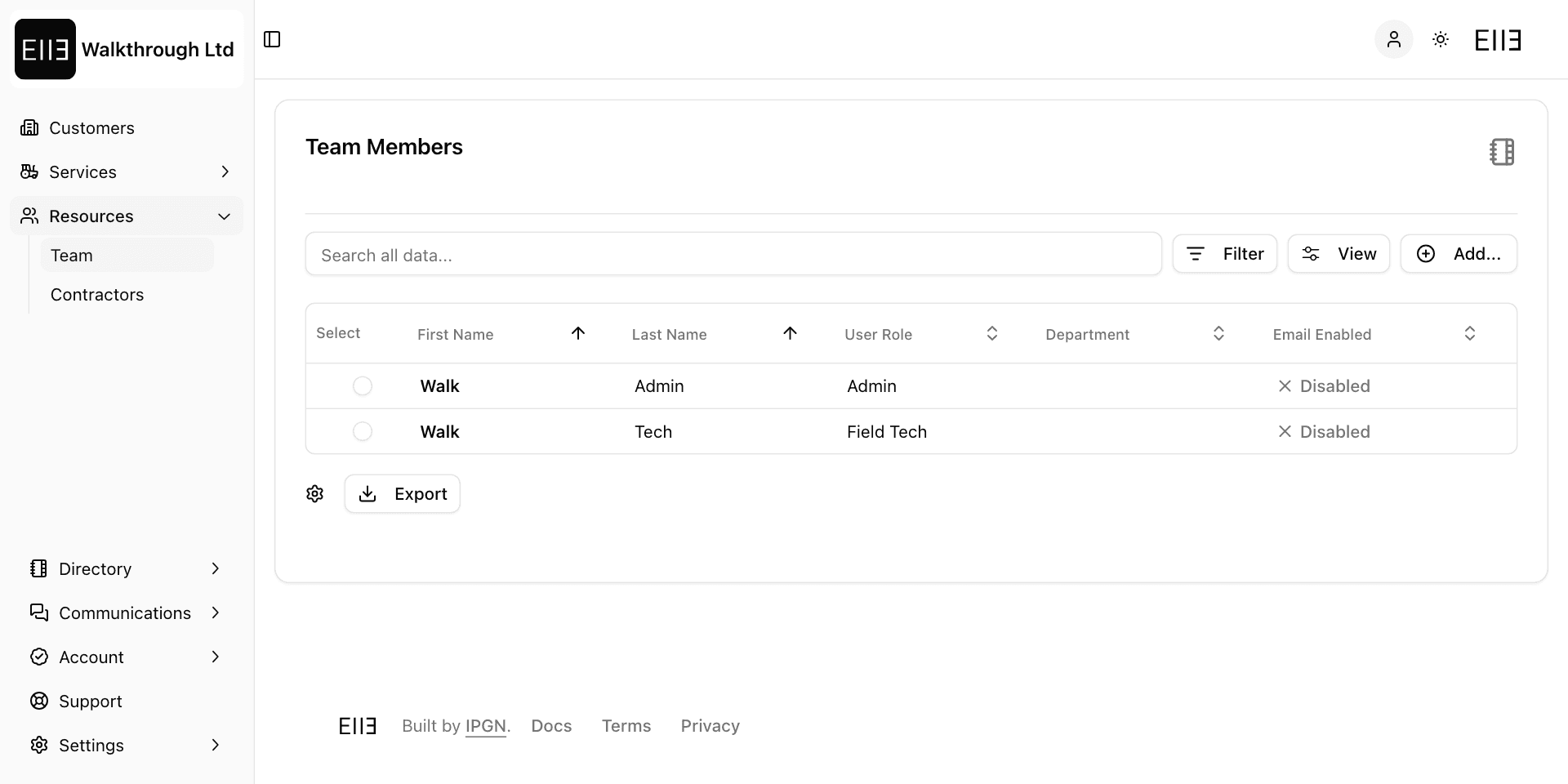
Open Resources › Team. You see Team Members.
-
Choose Add....
-
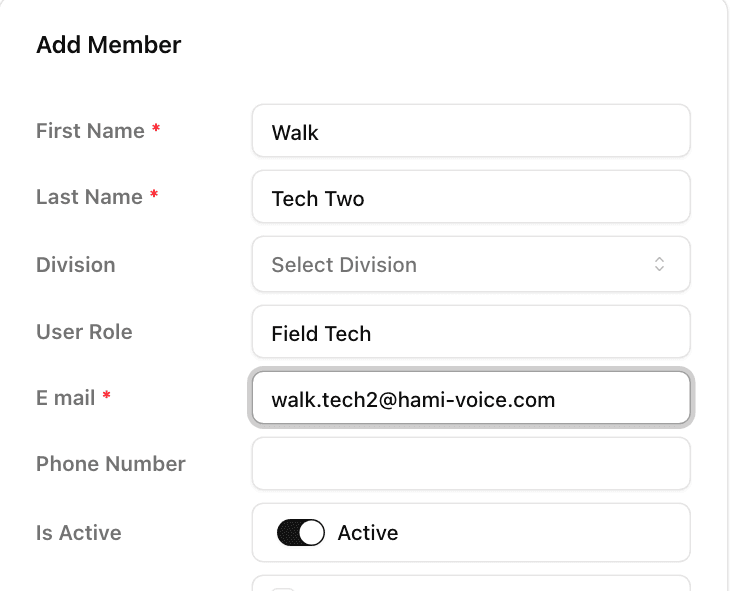
Under Add Member, fill in First Name, Last Name and E mail. You can also type their job, such as Field Tech, in User Role.
-
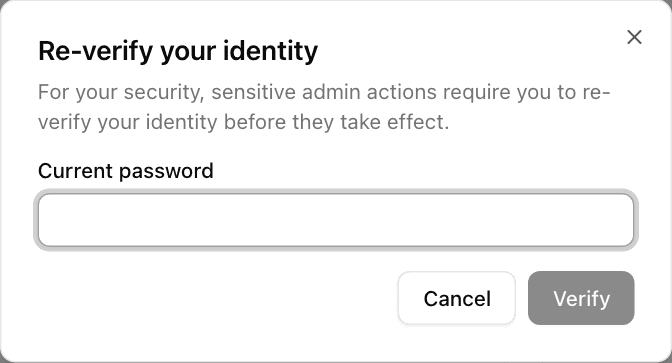
Choose Save. If you're asked to Re-verify your identity, enter your Current password and choose Verify. If you sign in with a password, a Code from your authenticator app box then appears: enter the code from your phone and choose Verify again. This protects changes to your team.
-
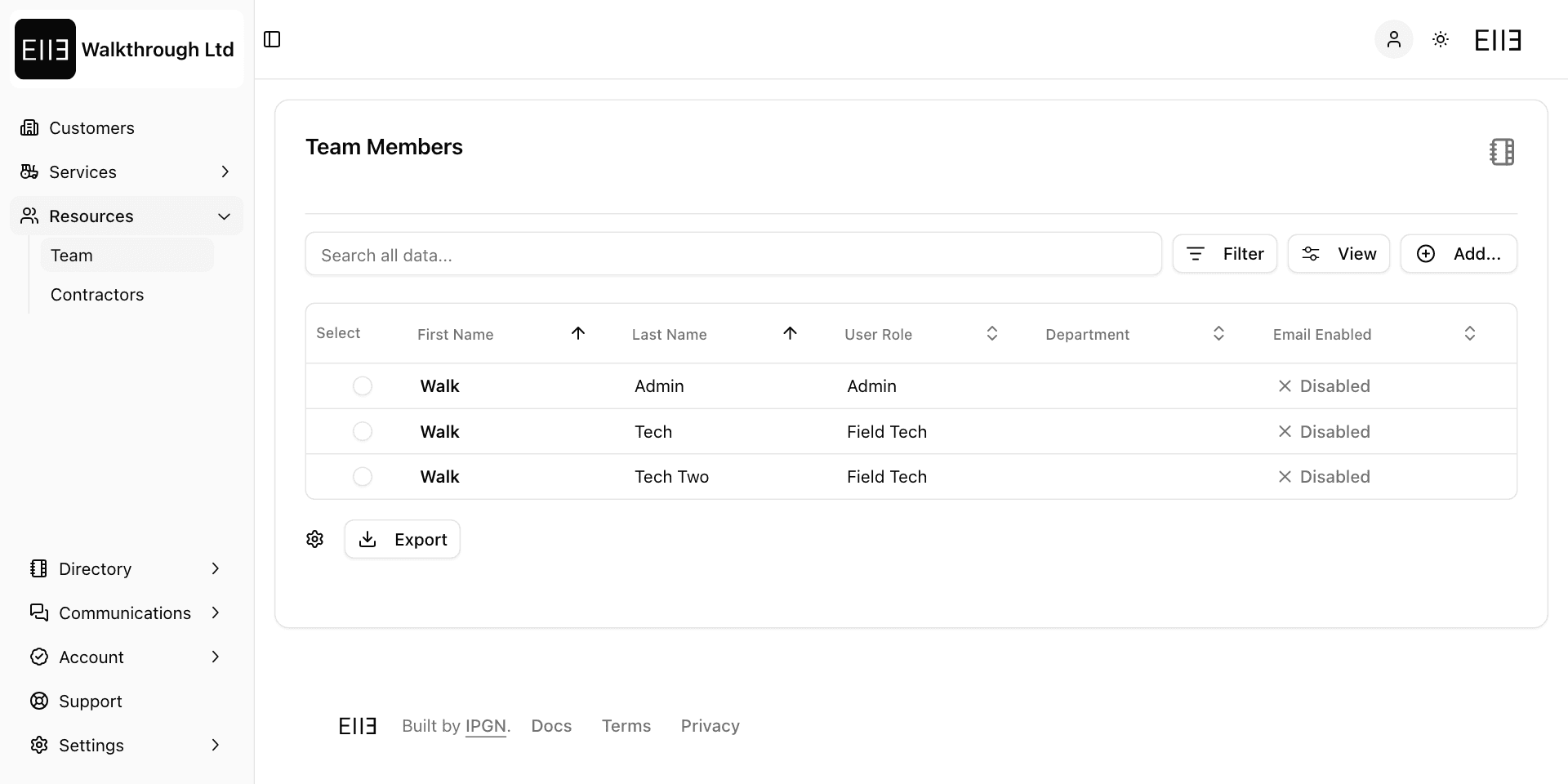
The tech now shows in Team Members, and a message says Entry saved.
Use the email address the tech will sign in with. If your company signs in with Microsoft 365 or Google Workspace, use that address.
Don't add your own staff under Contractors. A contractor can sign in only with email, and sees less: see What Contractors Can Access.
What Your Techs See
Once a tech is in your team, they get every Published template on their phone. They never see a Draft. See Publish and New Versions.
Send Each Tech This Message
Copy this, fill in the parts in brackets, and send it to each tech.
Subject: Your HAMI Voice sign-in
Hi [name],
We now use HAMI Voice for our surveys. Here's how to get started.
Get the app
- Android: install HAMI Voice from Google Play.
- iPhone: open survey.hami-voice.com in Safari. Tap the Share button, then Add to Home Screen.
Sign in
- Enter your work email, [their email], and tap Continue.
- Tap Continue with [Microsoft / Google / Email].
- If you chose Email: the first time, tap First time, or forgot your password?, then Send Code. Enter the code from your email, choose a password, and tap Set Password and Sign In.
- Set a PIN. You'll use it to unlock the app.
Any problems, reply to this email.
Which Button to Tell Them
Your techs may see all three sign-in buttons. Tell them which one to press, because a different button won't find their account.
| Your company signs in with | Tell the tech to tap |
|---|---|
| Microsoft 365 | Continue with Microsoft |
| Google Workspace | Continue with Google |
| Neither | Continue with Email |
To see which sign-in methods your company has, open Account › Setup and read Sign-in Options. For more on iPhones and sign-in, see The Answers You Owe Your Techs.