Publish and New Versions
New here? Start with How HAMI Voice Works: template, survey, report.
Techs only get a template once it's Published. Publishing also locks its questions, so every survey on that version asks the same ones. This page shows how to publish, and how to change a template once it's in use. For the full rules, see Template Versioning.
Publish a Template
-
Open Services › Survey Templates and choose your template.
-
Choose Save if you've made changes. You can't publish with unsaved changes.
-
Choose Publish.

-
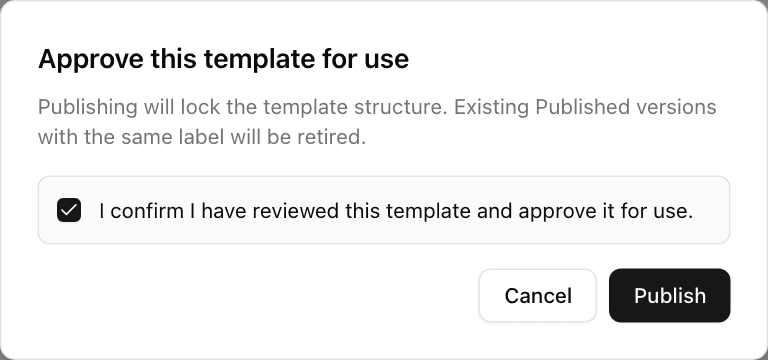
In Approve this template for use, tick I confirm I have reviewed this template and approve it for use., then choose Publish.
-
The header now shows Published and Structure locked.

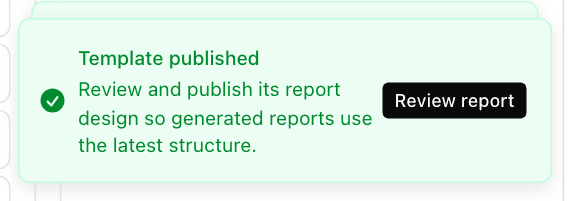
A message says Template published. It offers Design report if the template has no report design yet, or Review report if it has one. Choose it to set up the report straight away: see Set Up the Report.
Publish stays greyed out on a template with no questions. Hover over it to see why.
The Status box on the left can still say Draft straight after you publish. Reload the page and it says Published.
Change a Published Template
You can't change a published template's questions. Make a new version instead.
-
Open the published template and choose New Version.
-
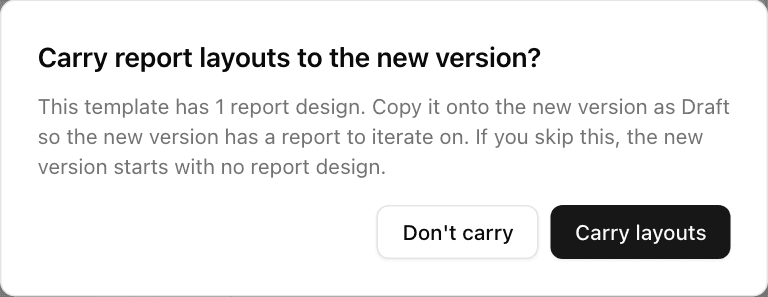
If the template has a report design, you're asked Carry report layouts to the new version?
- Carry layouts copies the report design to the new version as a Draft. Choose this to keep your design.
- Don't carry starts the new version with no report design.
-
The new version opens as a Draft, one number up: 1.2 becomes 1.3. Make your changes and choose Save.
-
Publish it as above. The old version becomes Obsolete.
-
Then publish its report. In the Template published message, choose Review report, then Publish on the report page. Until you do, the new version has no live report design.

Surveys already started stay on the version they began with. New surveys use the new version.
Which Version Is Live?
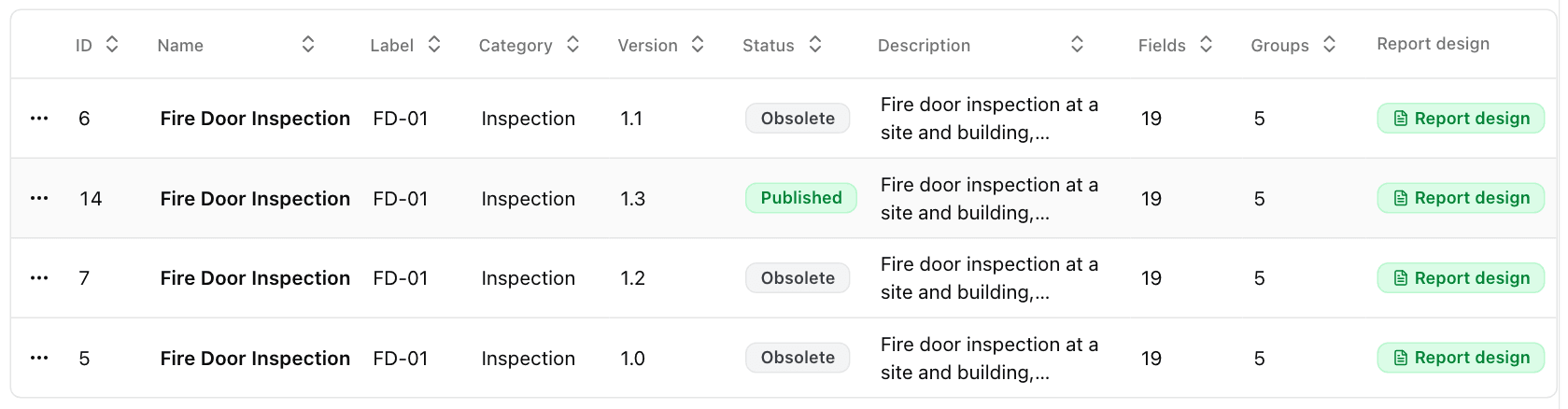
In Services › Survey Templates, each version is its own row. The Status column says Published, Draft or Obsolete. Only one version of a template is Published at a time. The Report design column shows which versions have a published report design. The table is wide, so you may need to scroll it sideways to see that column.