Your First Week
This page takes you, the admin, from your first sign-in to your first checked report. Do the steps in order. Each one links to a page that shows it, and some have a short video.
Three Words That Matter
Every survey goes through three steps. The picture in How HAMI Voice Works shows who does each one, and where.
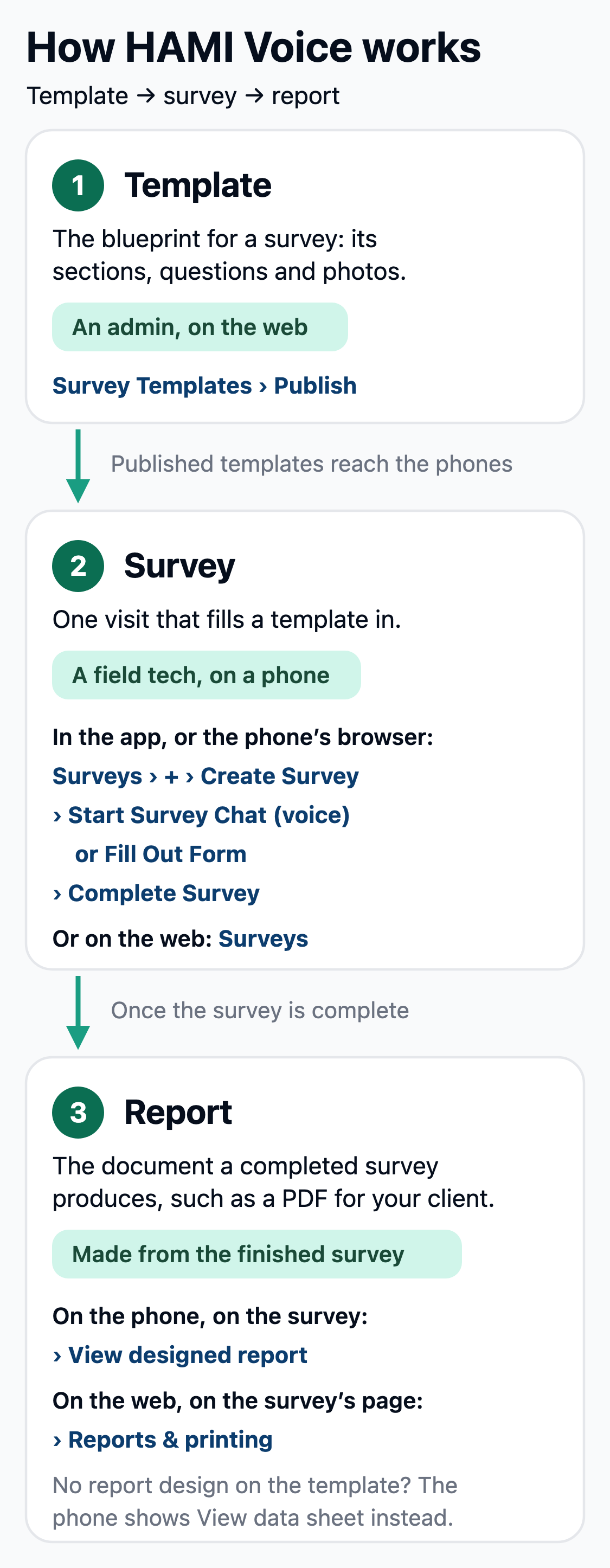
- A survey template is the list of questions. You build it on the web, and techs only get it once it's Published.
- A survey is one visit that fills a template in. A field tech does it on their phone, by voice or by form.
- A report is the PDF made from a completed survey. You set up how it looks once per template, with Design report.
Under Services you'll also see PDF Templates and Word Templates. You don't need them this week. When this page says "template", it means a survey template.
Day 1: Get Your Bearings
-
Sign in. If you sign in with an email and password, you first see Protect your admin account. Choose Set up now and add an authenticator app on your phone. It takes about 2 minutes. After that, you need your phone when you sign in on a new browser. Tick Don't ask for a code on this browser for 30 days on the one you use every day. See Set Up the Authenticator App. If you sign in with Microsoft or Google, you skip this. Then you land on the Surveys dashboard.
-
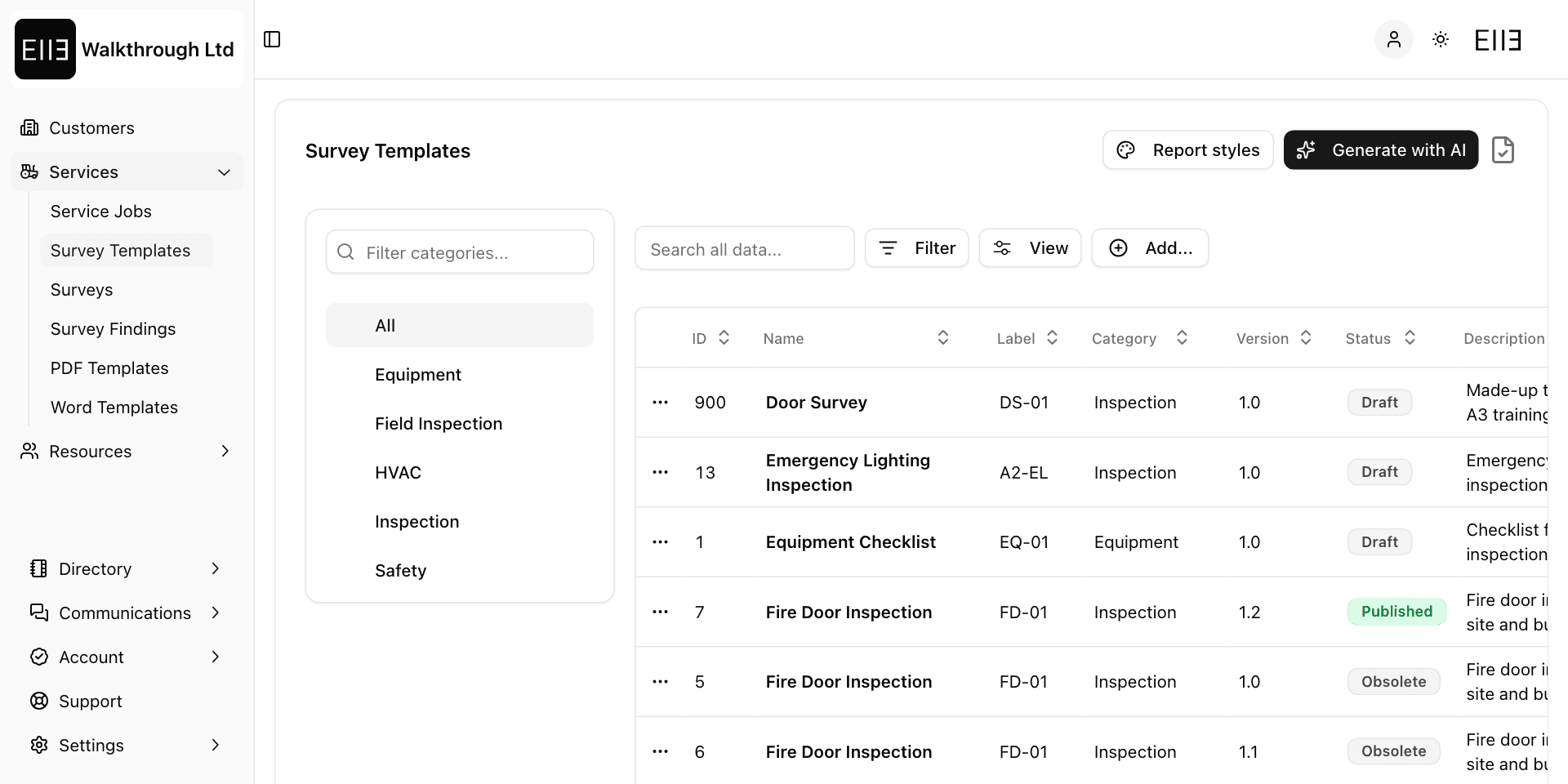
Open Services › Survey Templates. This is where you build and publish templates.
-
Watch the 2-minute video at the top of Survey Overview.
Your list may already hold a few sample templates marked Draft. Techs never see a Draft, so you can leave them. Build your own template from the paper or PDF form you use today.
Days 1–2: Build Your First Template
- Build it with the AI builder from your existing form: AI Template Builder. Its 2-minute video is at the top of that page.
- Tidy it by hand: sections, repeating groups and office-only questions. See Field Groups and Repeatable Groups. The 2-minute video is under Field Groups.
Build the template in your own account. There's no way yet to copy a template from one account to another.
Day 2: Publish It and Set Up Its Report
- Publish the template: Publish and New Versions. Publishing locks its questions. To change it later, you make a new version.
- Set up its report: Set Up the Report. Do this again after every new version, because a new version's report design starts as a Draft.
Day 3: Add Your Field Techs
- Add each tech to your team: Invite Your Field Techs.
- Send each tech the message on that page. Adding a tech doesn't send them anything.
Days 3–4: Your Techs' First Surveys
- Point your techs at the field tech pages: Mobile App, Voice Assistant and When It Goes Wrong. Or run a session with Train Your Team.
- Optional: link each survey to a job, so it's filed against the customer and site. See Linking Surveys to Job Lines, which has a 2-minute video.
Day 5: Check the First Completed Survey
- Open the survey, review its summary, then make the report again if you changed anything. See Generating a Report from a Completed Survey and Reviewing and Signing Off. The 2-minute video is under Generating a Report from a Completed Survey.
- Download the PDF and send that. Don't send the copied link: it stops working after 1 hour.
By the End of the Week You Can
- build a template and publish it
- set up its report
- add a tech, who can then sign in and see the template
- review a completed survey and make its report again
- explain template, survey and report to a colleague
Where Things Are
| You want to | Go to |
|---|---|
| Build or change a template | Services › Survey Templates |
| See every survey | Services › Surveys |
| Add a team member | Resources › Team |
| Link work to a customer and site | Services › Service Jobs |