Train Your Team
Notes for an administrator who trains their own field techs. The videos and help pages for techs are already in these docs. This page tells you how to use them in a short session: what to show, what to ask, what to skip, and where people get stuck. It also lists the answers your techs will come to you for.
The videos are short, one task each, and work with nobody on hand. Use this page if you'd rather go through them with your team, or as a checklist before a tech's first shift.
The picture of how it fits together, template → survey → report, is in How HAMI Voice Works. New to setting HAMI Voice up yourself? Start with Your First Week.
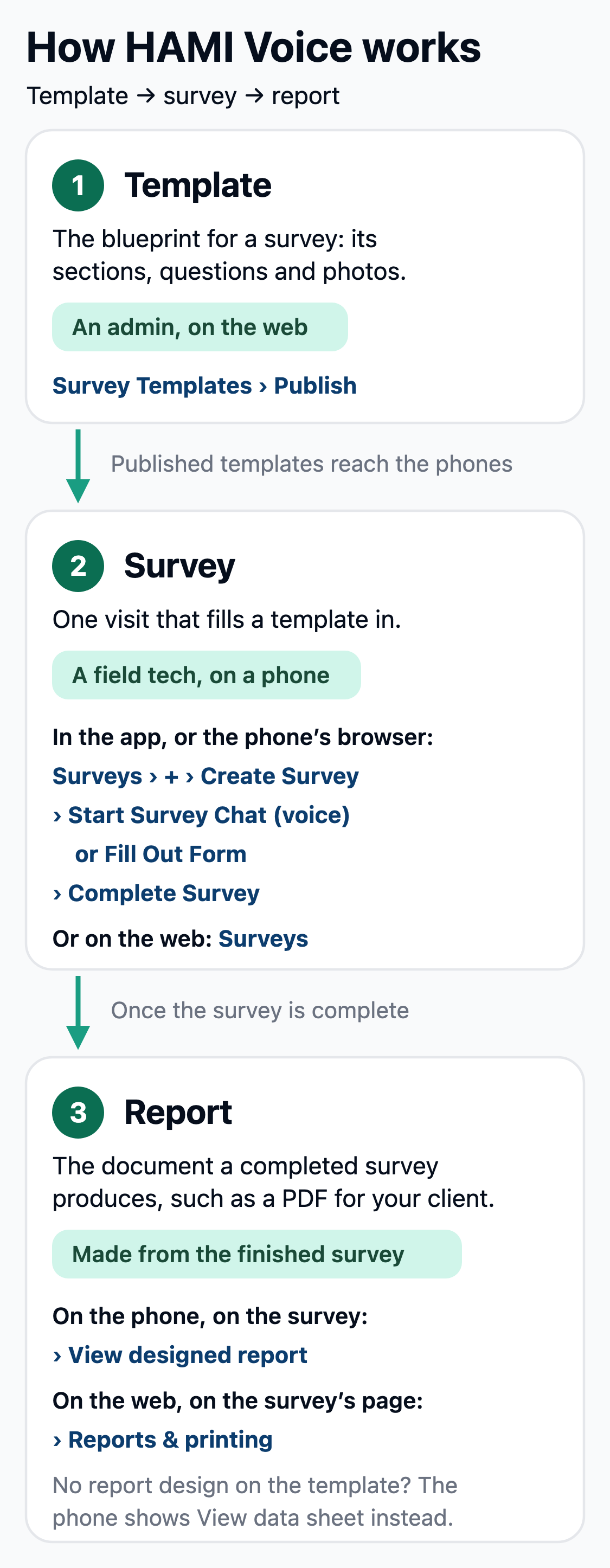
Start With the Big Picture
Open the session with the three steps every survey goes through, and where each one happens:
- Template. The blueprint for a survey: its sections, questions and photos. You build it on the web, under Survey Templates, then select Publish. Only published templates reach the phones.
- Survey. One visit that fills a template in. A field tech does it on a phone, in the app or the phone's browser: +, then Create Survey, then Start Survey Chat to talk or Fill Out Form to type, then Complete Survey. It can also be filled in on the web under Surveys.
- Report. The document a completed survey produces, such as a PDF for your client. On the phone it opens from the survey; on the web, from the survey's page.
The 2-minute video at the top of Survey Overview shows all three. Play it first.
Ask: "Who builds the template, and who fills it in?" A tech who can answer that knows why a question they need isn't there: the template is yours to change, not theirs.
Before the Session
Have these ready, so the first survey works on the day:
- A published template. Techs see only published templates when they tap Create Survey. A Draft, or an old version, doesn't appear. See Publish and New Versions.
- Each tech added to your team under Resources → Team, with Add Member, using their work email. See Invite Your Field Techs. Adding someone sends them nothing, so you tell them how to get in (see the next section).
- A job for them to link to, if you want surveys filed against jobs. The phone's Work Item list shows the job lines and maintenance jobs assigned to that tech. See Linking to a Work Item.
- A practice survey they can fill in and throw away, on a made-up job. Nobody should learn on a client's real job.
- A printed copy of When It Goes Wrong, or the link on each phone.
The Answers You Owe Your Techs
The tech videos tell techs to ask you about these. Have the answers before the session.
Which sign-in button to press
After a tech types their email, Choose Sign-in Method shows a button for each sign-in method your company has: Continue with Microsoft, Continue with Google, Continue with Email, or some of them. The screen doesn't say which one belongs to the tech. It offers every method your company has, not the ones that tech's account can use. A Microsoft or Google button only works for someone who has a company account of that kind.
Tell each tech, in one line:
- "Press Continue with Microsoft" if your company signs in with Microsoft 365 and the tech has a company Microsoft account.
- "Press Continue with Google" if your company uses Google Workspace and the tech has a company Google account.
- Otherwise, "Press Continue with Email." The first time, they tap First time, or forgot your password?, then Send Code. They type the 6-digit code from their email, choose a password of at least 12 characters, and tap Set Password and Sign In. Then they set a PIN.
A contractor sees only the Email button. To check which methods your company has, open Account › Setup in the side menu and read Sign-in Options.
Checked so far: the Email route, on the app's browser version, with a made-up tech. The Microsoft and Google routes haven't been tried for a new tech.
What to tell a tech with an iPhone
HAMI Voice isn't on the App Store yet. Android techs install HAMI Voice from Google Play.
An iPhone tech can use the app in Safari instead:
- Open
survey.hami-voice.comin Safari. - Sign in as above.
- A box says Add Surveys to your Home Screen. Tap the Share button (square with arrow) at the bottom of Safari, then Add to Home Screen.
- Open it from the Home Screen icon from then on. Note that it's called Surveys there, not HAMI Voice.
What's different in the browser version:
- No offline voice. Offline voice is only in the Android and iPhone apps, not in a browser. Skip the offline voice video for these techs.
- No Face ID. They type their PIN, which is always 6 digits. A reload or a new tab asks for the PIN again.
Not checked yet: these steps haven't been tried on an iPhone. Try them on one iPhone yourself before you tell the whole team. This answer changes when the app is on the App Store.
The other answers they'll need
| A tech asks | Your answer |
|---|---|
| "I've forgotten my PIN and I've no signal." | They read you a 10-digit number. You make an 8-digit code under Settings → PIN Unlock Codes and read it back. You need the settings administrator role. See Making an Unlock Code. |
| "Do we have offline voice?" | Only if you've switched on Offline voice under Settings → Features. See Turning It On for Your Organisation. |
| "Which questions do I have to answer?" | The ones you made required in the template. The app's completion check only knows about those. |
| "Will I see View designed report or View data sheet?" | View designed report if the template has a published report design; otherwise View data sheet. After you make a new version of a template, publish its report design again, or techs see View data sheet. |
| "Who do I call when it goes wrong?" | Give them a name and a number. The quick card tells them to call their admin. |
Asset by Asset
Go through these in order. Each one has a video or page, the points worth stopping on, what to skip, and where people get stuck.
1. Install and sign in
Watch: the video under Getting the App.
- Show: stop after "Use the one your admin told you" and give them the button, from Which sign-in button to press. Then let each tech sign in on their own phone, on Wi-Fi, before they go to site.
- Ask: "What do you type when the app asks for a PIN, and what if you forget it?" The answer is their PIN, and Forgot PIN?.
- Skip: Face ID and fingerprint. With gloves or a mask on, techs use the PIN.
- Where people get stuck:
- Which button. Every tech sees all of your company's sign-in methods, with nothing saying which is theirs. They need your one-line answer.
- iPhone. The video says "ask your admin". Give them the Safari steps above.
2. Start a survey
Watch: the video under Creating a New Survey.
- Show: +, then Template, then Work Item, then Create Survey. Have the practice template and job ready, so they pick real names on their own screen.
- Ask: "What's the Work Item?" It's the job. The phone says Work Item; the office says job or job line. Same thing.
- Skip: the survey title. It's optional.
- Where people get stuck:
- Work Item means job. Say it out loud once.
- The + button has no spoken name. A tech using a screen reader hears nothing for it. Show them where it is.
3. Talking to the voice assistant
Watch: the video under Starting a Voice Survey.
- Show: Start Survey Chat, then "start the survey" once, then answer one question and say "skip" for another. Let each tech try it on the practice survey in a quiet room first.
- Ask: "What do you say first, and why?" "Start the survey", so HAMI knows which voice is theirs.
- Skip: the voice commands reference. Answering the question HAMI asks is enough for a first shift.
- Where people get stuck:
- Declining voice recording. Use Manual Input on the consent screen takes them back to the survey, not to a place where they can type to HAMI. Tell them to tap Fill Out Form from there.
- "Nice — I saved that from what you said" can show on a new survey before they've said anything. It's a tip, not a mistake. Close it and carry on.
- A photo HAMI asks for now goes in the section that asked. That was a problem in older versions. Tested on Android; not yet on an iPhone.
4. Form mode
Watch: the video under Input Modes.
- Show: Fill Out Form, a typed answer, an option, and a yes/no question. Then the save button.
- Ask: "When would you type instead of talk?" A noisy site, a serial number, an unusual name, no signal.
- Skip: nothing. It's under a minute.
- Where people get stuck:
- Yes/no questions used to show "No" before anyone answered. They now start blank, with Yes and No buttons. If a tech's phone still shows the old switch, they need the latest app.
5. Photos, sheets and pins
Watch: the video at the top of Drawings & pins.
- Show: a camera button on a section, Take Photo, Choose from Gallery, and Survey Photos for general shots. Show sheets and pins only if your templates have a location pin question.
- Ask: "Where does a photo of the whole building go?" In Survey Photos, near the bottom.
- Skip: sheets and pins, if your templates don't use them.
- Where people get stuck:
- Filling a survey in on the main website on a phone. The photo menu can open off the left edge of the screen. Techs on a phone should use the app, or
survey.hami-voice.com. - Repeated sections such as observations used to show a doubled "s" ("No observationss added yet"). That's fixed.
- Filling a survey in on the main website on a phone. The photo menu can open off the left edge of the screen. Techs on a phone should use the app, or
6. Working offline and sync
Watch: the video under Online vs Offline Mode.
- Show: with no signal, Fill Out Form still works; voice says Requires internet connection. Then Pending Sync.
- Ask: "How do you know your work has reached the office?" The Pending Sync tag goes away.
- Skip: clearing local data.
- Where people get stuck:
- Nothing ever says "Synced". The Pending Sync tag just disappears. Tell them that's the sign.
- Pending Sync can stay after Complete Survey, even when the office already has the survey. Pull the survey list down to refresh. If it still shows, check the survey on the web: if it's there, it's sent.
- Sign in before going somewhere with no signal, and don't sign out. Signing in needs signal.
7. Finish and submit
Watch: the video under Survey Lifecycle.
- Show: Complete Survey at the bottom of the form, Show me for a missing photo, then Complete, then Update Form to change it afterwards.
- Ask: "The app says all required fields are complete. Are you done?" Not yet: look over the answers first.
- Skip: the report preview on the phone, unless your techs send reports themselves.
- Where people get stuck:
- All required fields complete only means nothing you made required is missing. Blank questions you didn't make required don't stop them.
- The report button's name changes: View designed report or View data sheet, depending on the template. Tell them which one yours shows.
- The data sheet is cut off at the right edge of a phone screen. If they need it, open it on the web.
- After the signal comes back, the report may still say "you're offline" and show the data sheet. Closing and reopening the app clears it.
- A completed survey used to show "In Progress". That's fixed: it now shows Completed.
8. When it goes wrong
Read: When It Goes Wrong. It's a page, not a video.
- Show: where it is, and its sections: sign-in and PIN, voice, no signal, syncing, photos, finishing. Put the link on each phone.
- Ask: "You've lost signal mid-survey. What do you do?" Tap Fill Out Form and keep going.
- Skip: reading it end to end. It's for looking things up.
- Where people get stuck: its first entry, on which sign-in button, sends them to you. So does Forgot PIN with no signal. Have both answers ready.
9. The quick card
The printed card is for gloved hands. Download the quick card (PDF, A5) and print one for each tech. It has 6 steps: open the app and type your PIN; tap + and pick the Template and Work Item; Start Survey Chat and say "start the survey"; or Fill Out Form; add photos with Take Photo; and Complete Survey.
- Show: hand it out at the end, and walk the 6 steps once on the practice survey.
- Ask: "Which step would you do differently with no signal?" Steps 3 and 4: type instead of talk.
- Where people get stuck: step 1 says "sign in with the button your admin told you". Write the button on each tech's card.
10. Offline voice
Watch: the video under Using It With No Network. Only if you've switched offline voice on, and only for techs using the Android or iPhone app.
- Show: set-up once on Wi-Fi when the app offers it; the header changing to Offline voice; the Back online button.
- Ask: "Offline, what do you say?" The answer to the question HAMI asks, short and clear.
- Skip: the voice print and the speed check, unless a tech's phone asks for them.
- Where people get stuck:
- Naming a question from another section isn't saved offline, though the banner says to say a field's name. Tell them to answer the question HAMI asks.
- Tap Back online between answers, not while HAMI is talking.
After the Session
- Ask each tech to complete the practice survey on their own, start to finish, before their first real job.
- Check it on the web under Surveys, and open its report. If something's wrong, it's cheaper to find it now.
- Archive the practice surveys afterwards, so they drop out of the surveys list. See Survey Actions.